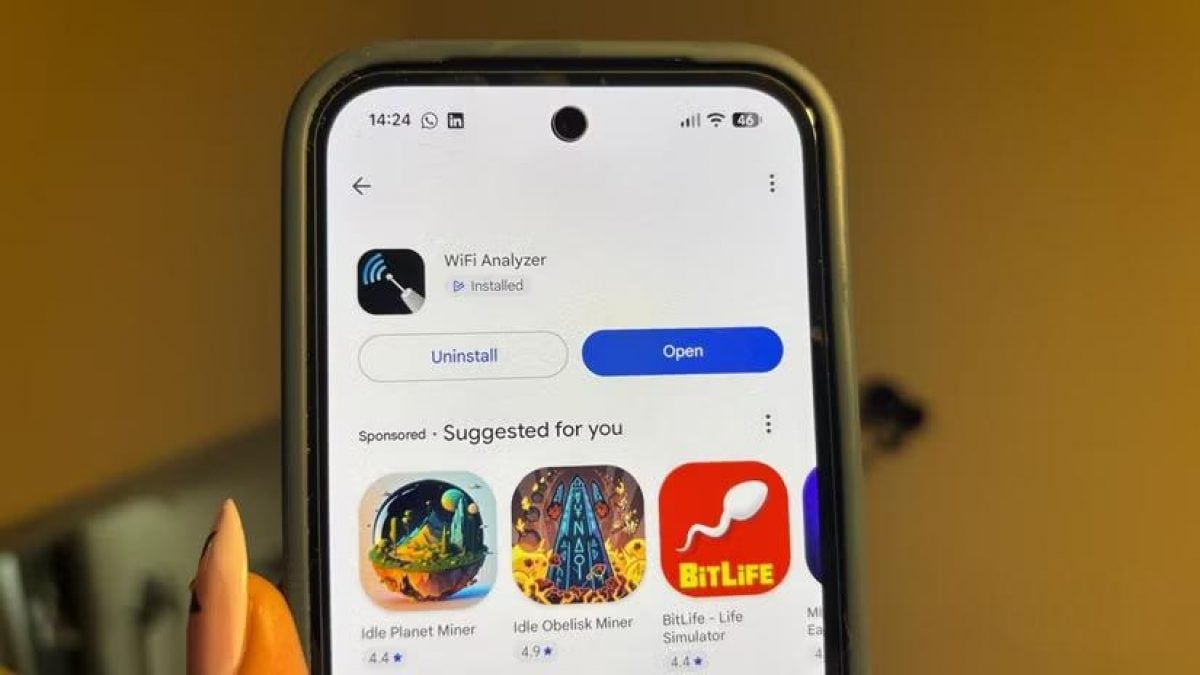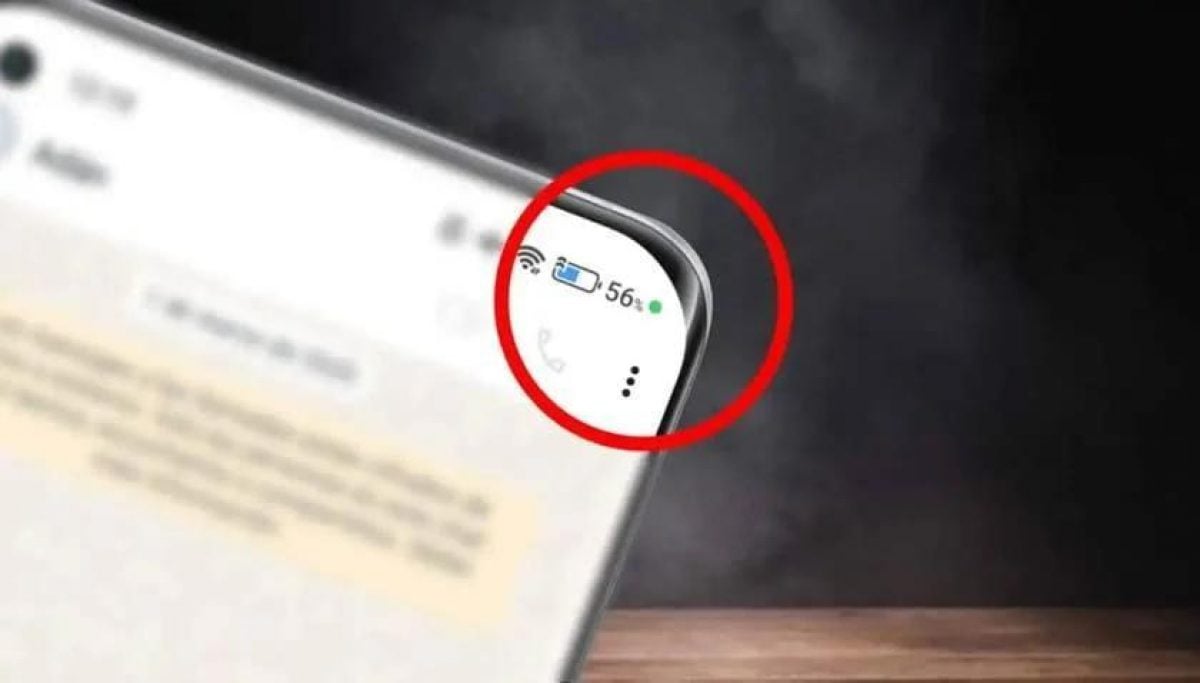
Smartphone owners who see green or orange dots on Apple iPhone or Google Android screens are viewing privacy indicators that signal camera or microphone access.
The small colored dots usually appear at the top of the display for only a few seconds before disappearing during routine tasks, according to a report by Romanian news website Digi24.ro.
In most instances, the appearance of a dot is entirely normal and occurs during active phone calls, video recording, or actions that require hardware access. However, tech analysts note that an indicator appearing without an obvious reason should prompt users to check their device security.
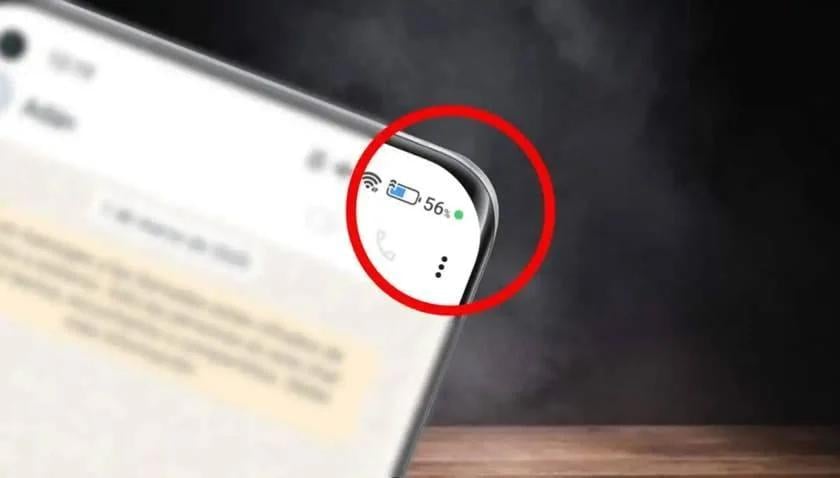
Privacy notification systems were introduced by major mobile platform developers to prevent unauthorized background surveillance. Tech Advisor, a technology publication, previously highlighted how these visual cues inform users whenever an application accesses system hardware.
Orange dots on Apple iPhones
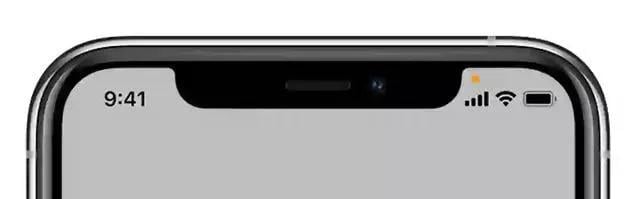
On Apple iPhone models, an orange dot indicates that an application is actively using the microphone without accessing the camera. The orange symbol commonly appears when a user makes a standard phone call, records a voice message, or runs the default voice memo recorder.
Apple Inc. introduced this dedicated privacy feature in iOS 14 to ensure users can identify when an application accesses audio inputs. The indicator remains visible even if the application operates in the background or is hidden from the primary display screen.
For users who enable the Differentiate Without Color accessibility feature in iOS settings, the orange dot displays as a small orange square. This visual modification helps individuals who experience color blindness identify microphone activity without relying solely on hue.
Apple Inc., based in Cupertino, California, developed the iOS operating system for its flagship iPhone line. The company has emphasized hardware privacy controls across recent software updates.
On Google Android devices, an orange dot indicator is generally not used. Instead, recent versions of the Android operating system rely on a green dot to signal that an application has accessed either the microphone or the camera.
Green indicators across operating systems
The specific meaning of a green dot depends on the operating system installed on the smartphone. On an Apple iPhone, a green dot appears whenever an application uses the camera hardware.
The green dot on iOS also displays during simultaneous use of both the camera and microphone. This occurs during video calls, mobile video recording, or when scanning a Quick Response code.
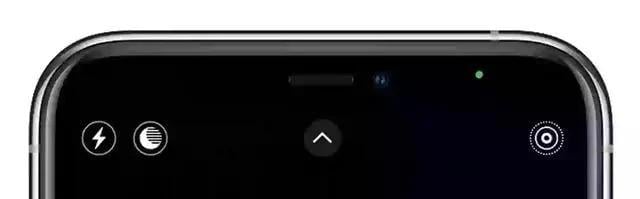
On Android devices, a green indicator alerts the user that an application is currently using the camera, the microphone, or both components at the same time. Android is an open-source mobile platform developed by Google LLC, a subsidiary of Alphabet Inc.
Android smartphone users can view additional details about active sensors depending on their system software version. Tapping the green dot directly or opening the quick settings panel reveals which hardware component is in use.
Unexpected indicator activation causes
Colored dots regularly activate during legitimate background operations that users may not immediately associate with camera or microphone access. For example, microphone usage occurs during text dictation, voice-assisted web searches, music recognition services, digital assistant queries, and audio memo recording.
Camera hardware is similarly required by a broad range of third-party software beyond basic photography apps. Social media platforms, mobile banking applications, payment services, and retail shopping apps routinely request camera access to scan codes, complete identity verification checks, or photograph documents.
Once a user finishes the specific process requiring hardware access, the colored dot should disappear automatically from the top of the display screen. If the indicator remains visible continuously or reappears frequently without a clear cause, software permissions require review.
Identifying active applications
iPhone users can identify which application accessed their hardware by opening the Control Center, accessed by swiping down from the top right corner of the screen. The top of the Control Center interface displays the name of the app currently or recently using the camera or microphone.
Android users can swipe down from the top of the display and tap the green indicator directly to identify the active application. On most Android devices, this action immediately identifies the specific program accessing system hardware.
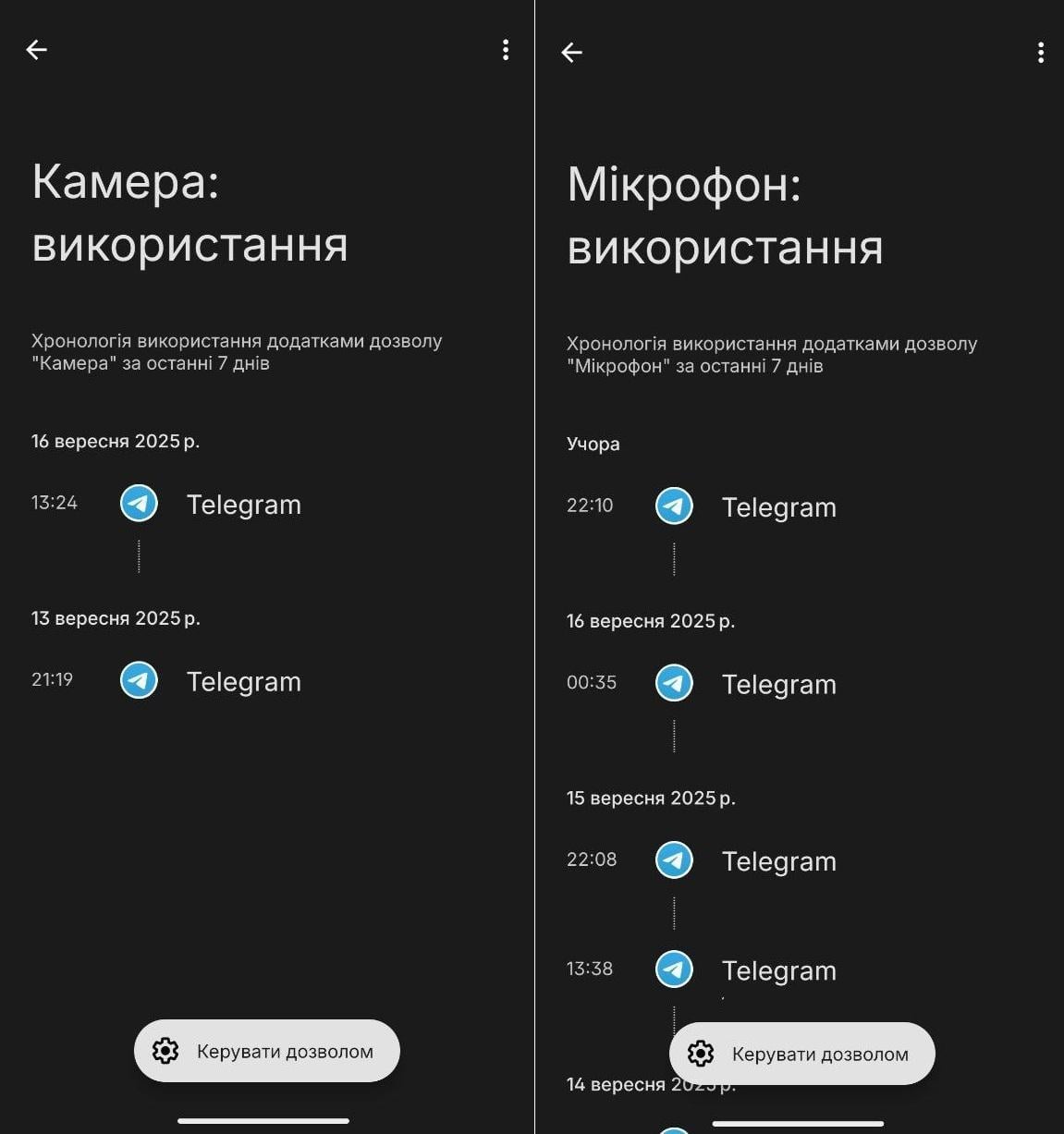
Recent Android operating system releases include extended permission auditing features. Android 12 provides an access history showing app activity over the previous 24 hours, while Android 13 expands the privacy dashboard history to cover up to seven days of sensor access.
Managing camera and microphone permissions
If a suspicious program triggers hardware indicators, smartphone owners can revoke its camera or microphone permissions through system settings. On Apple devices, users navigate to Privacy & Security, select Camera or Microphone, and disable access for specific apps.
On Android devices, hardware permissions are managed within the privacy menu or permission manager. Depending on the software version, users can grant permanent access, restrict access to while using the app, set the system to ask every time, or deny permission completely.
Some Android phone manufacturers also provide a quick settings toggle that completely disables camera and microphone hardware across the entire device. When activated, this toggle prevents all applications from accessing system sensors until the user explicitly re-enables them.