


Home Wi-Fi networks can suffer severe connection drops and slow speeds when neighbouring routers operate on the exact same wireless channels, XDA Developers reported. A test conducted by an editor at the technology publication revealed that his home router was sharing a single radio channel with 14 neighbouring access points, creating heavy signal interference and degrading overall network performance.
Wireless connectivity problems are frequently blamed on internet service providers or faulty router hardware. However, network analysis shows that channel congestion is often the underlying cause of unstable connections, increased latency, and sudden throughput drops in residential areas.
Specialised Wi-Fi analyzer applications allow users to scan surrounding radio signals for free. These utility applications detect active wireless networks, identify which channels neighbouring routers occupy, and highlight congested frequency ranges in real time.

Radio interference on the 2.4 GHz spectrum band
Signal congestion occurs most severely within the 2.4 GHz radio frequency spectrum. This frequency band contains only three channels that do not overlap with one another: channel 1, channel 6, and channel 11.
The 2.4 GHz spectrum is an unlicensed industrial, scientific, and medical radio band used by home routers, Bluetooth accessories, cordless phones, and consumer electronics. Because 2.4 GHz radio waves travel long distances and pass easily through concrete walls, neighbouring networks in high-density residential areas frequently collide on identical frequencies.
When multiple routers operate on the same frequency, they trigger Co-Channel Interference. In wireless networking standards, access points sharing a channel must use collision avoidance protocols. Under these protocols, competing routers cannot transmit data simultaneously and must take turns broadcasting data packets across the shared spectrum.
This mandatory queuing process increases network latency, triggers sudden ping spikes, and reduces overall throughput below advertised broadband speeds. Latency measures the delay in milliseconds for data packets to travel across a network, making high latency particularly noticeable during video calls, streaming, and online gaming. The issue is especially common in apartment buildings where dozens or hundreds of active wireless devices operate within close proximity.
Scanning neighbouring signals with mobile analyzer apps
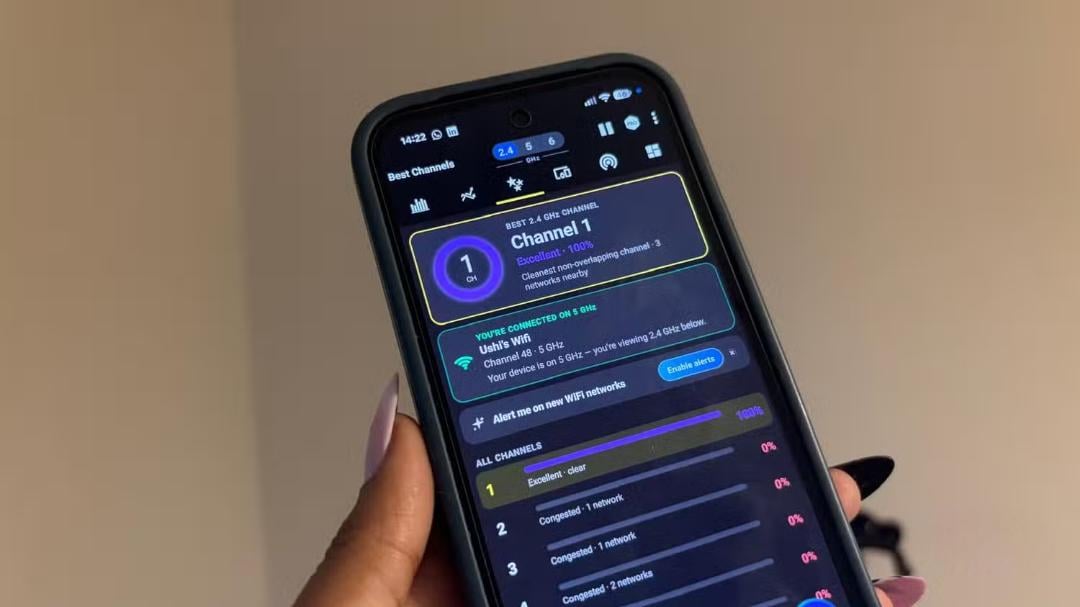
To identify local signal congestion, users can run diagnostic scans using mobile analyzer software. The writer at XDA Developers used Wi-Fi Analyzer, a free application available on the Google Play app store.
XDA Developers is a mobile technology publication and software development community founded in 2003, known for hardware testing and software diagnostics. Google Play is Android’s primary software marketplace, hosting network tools that visually graph radio signal strength and channel allocations across local environments.
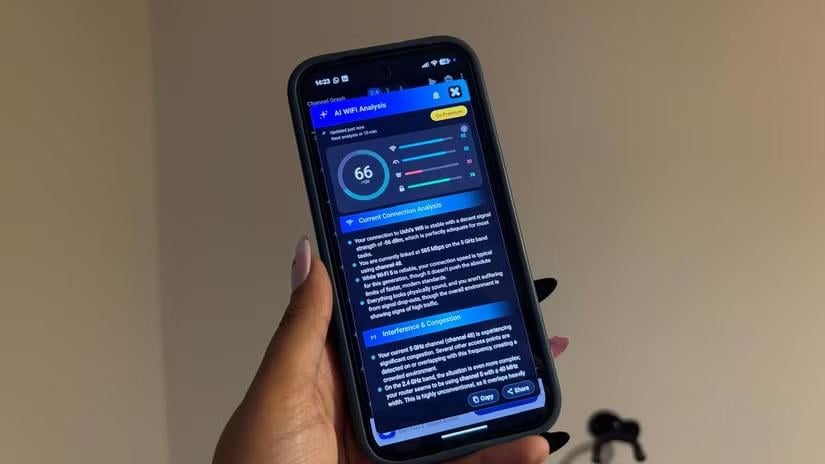
The diagnostic scan revealed that the author’s 5 GHz band channel 48 was heavily congested by multiple neighbouring access points operating on identical or overlapping frequencies. This frequency overlap explained the latency spikes and intermittent connection drops experienced during daily use.
Diagnostic scans can also reveal local network strain caused by internal hardware within a home. In many households, multiple smart home gadgets or inexpensive Internet of Things devices become concentrated on a single wireless channel. Internet of Things hardware includes connected smart plugs, light bulbs, and security sensors that transmit background data. These connected accessories crowd the channel even while adjacent frequency channels remain completely vacant.
Reconfiguring router settings for optimal performance
After identifying surrounding network allocations, users can open their router control panel to select a less congested channel. For networks running on the 2.4 GHz band, administrators should choose between channel 1, channel 6, or channel 11 based on local scan results.
Intermediate channels including channel 2, channel 3, channel 4, and channel 5 overlap with adjacent frequency blocks. Using these intermediate settings generates extra radio interference and rarely improves wireless connection quality.
Exact configuration steps vary depending on router manufacturers and hardware firmware interfaces. Experts recommend performing a local spectrum scan before manually selecting an optimal radio channel.
Switching to 5 GHz and 6 GHz frequency bands
Migrating wireless traffic to higher frequency bands offers another effective solution for improving home network performance. The 5 GHz and 6 GHz radio bands provide wider channels operating at 80 MHz or 160 MHz bandwidths, which significantly increases data transfer capacity in crowded environments.
Channel bonding on 5 GHz and 6 GHz bands combines multiple standard 20 MHz sub-channels into wider blocks, multiplying theoretical data speeds. Higher frequency radio signals deliver faster throughput speeds over shorter distances, though they experience higher attenuation when passing through solid interior walls.
When configuring wider channels on higher bands, users must ensure the frequencies do not conflict with Dynamic Frequency Selection channels. Dynamic Frequency Selection channels are shared with active radar installations, including weather monitoring stations and airport aviation control radar systems.
Regulatory standards require consumer Wi-Fi routers to automatically vacate Dynamic Frequency Selection channels if radar signals are detected, which can lead to momentary network disconnections. Device compatibility must also be evaluated before modifying network bands, as legacy smartphones, basic smart home sensors, and older electronic hardware may lack 5 GHz support, leaving them restricted to 2.4 GHz connections.
Tech experts advise running a free Wi-Fi analyzer scan before purchasing replacement routers or expensive mesh networking systems. Mesh Wi-Fi systems use multiple interconnected satellite nodes to extend wireless coverage across large homes, but they cannot eliminate channel interference if surrounding frequencies are congested. Adjusting existing router settings to an unoccupied spectrum segment can often restore network stability without additional financial cost.


