

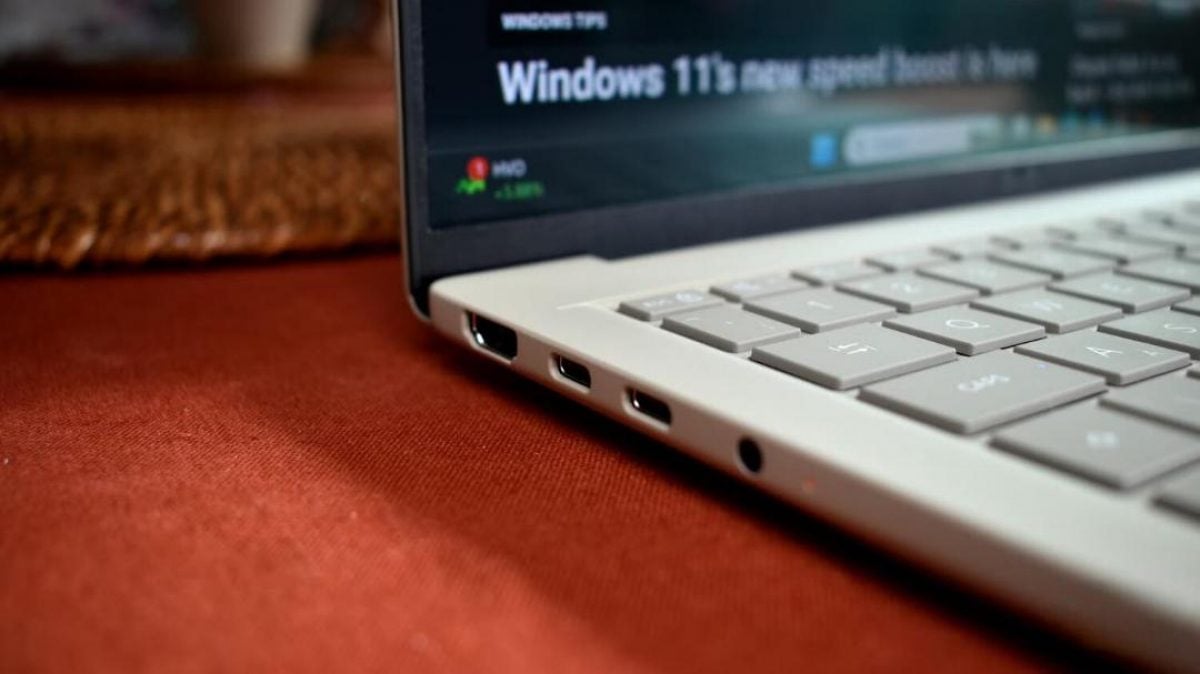
A technology writer for MakeUseOf has reported that he used the wrong USB port on his personal computer for years, causing files to copy noticeably slower than they should have.
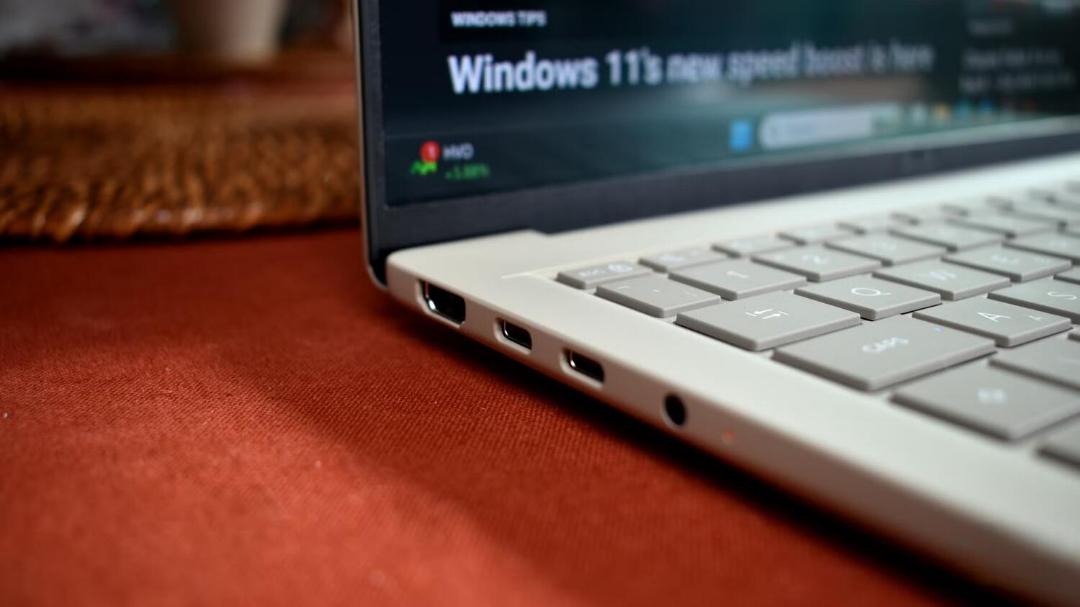
The author said the problem was not with his storage drive or his cable, but because he had connected a fast drive to a slower connector. Many users plug flash drives, external solid state drives and other devices into the same computer port without considering that the speeds can vary significantly, resulting in sluggish performance and longer charging times for smartphones.
Universal Serial Bus, or USB, is an industry standard protocol used to connect computers, peripherals and mobile devices for data transfer and electrical power. Several generations of the technology have been released since its inception in the mid 1990s, with each iteration bringing marked increases in data transfer speeds.
The USB 2.0 standard, released in 2000, supports data rates of up to 480 megabits per second. While this is sufficient for basic devices like keyboards and mice, it is very slow by modern standards. The subsequent USB 3.0 generation provides speeds up to five gigabits per second, which is approximately 10 times faster.
Connecting an external SSD to an older USB 2.0 port will make it work slower than it is capable of performing. Users often think the problem lies with the storage drive itself, although the reason is simply the wrong choice of port.
Choosing the fastest connection
Most modern desktop computers and laptops are equipped with between two and six USB connectors. Users frequently choose the most convenient port, such as those located on the front panel of a PC case or the one closest to a cable on a laptop.
However, the most accessible connector is not always the fastest. One port might support the USB 3.2 Gen 2 standard, which reaches speeds of up to 20 Gbps, while a neighbouring port could be limited to USB 3.2 Gen 1 and max out at about 10 Gbps.
These differing USB standards affect both data transfer rates and how quickly devices recharge. A standard USB 2.0 connection is generally limited to around 2.5 watts of power. USB 3.x ports can output up to 4.5 watts, while modern USB-C connectors equipped with Power Delivery can provide significantly more energy.
Identifying port speeds
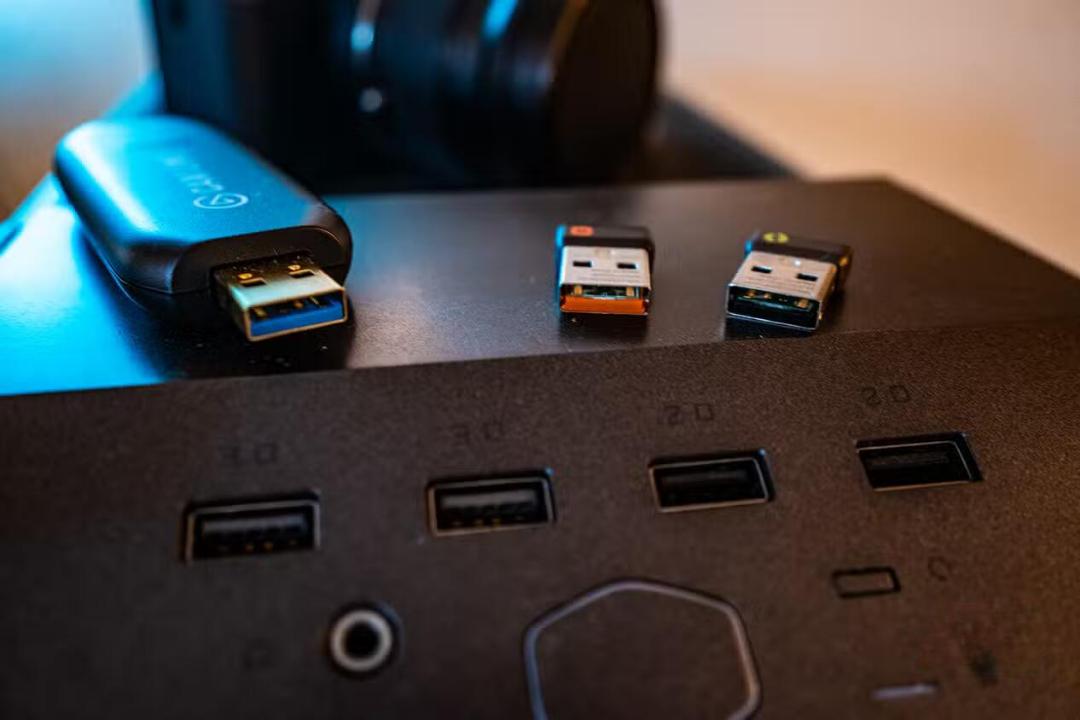
Users can determine the capabilities of their USB ports in several ways. The simplest method is to check the colour and markings on the port. USB 2.0 ports are typically black, while USB 3.0 ports are generally blue.
Some hardware manufacturers use green or turquoise to designate faster USB 3.1 Gen 2 ports. A red port frequently indicates that the connector continues to supply power to devices even when the computer is turned off.
There is no universal colour coding standard for USB hardware, meaning a blue connector can occasionally be a basic USB 2.0 port. However, most technology companies follow these conventions, making colour a reliable first indicator.
Checking the symbols next to the port provides a more accurate assessment. A standard USB icon indicates a basic standard connection, while the letters SS denote a SuperSpeed USB 3.x port. Markings such as SS10 or SS+ usually represent speeds of up to 10 Gbps, and a lightning bolt symbol can signify support for fast charging.
If a computer case lacks physical markings, Windows users can open the Device Manager application and navigate to the Universal Serial Bus controllers section. This menu lists all the USB connectors in the system, and the hardware names typically indicate which generation they belong to.
The MakeUseOf report noted that users can accelerate file transfers and device charging simply by paying attention to which port they use, without needing to buy any new equipment.


