

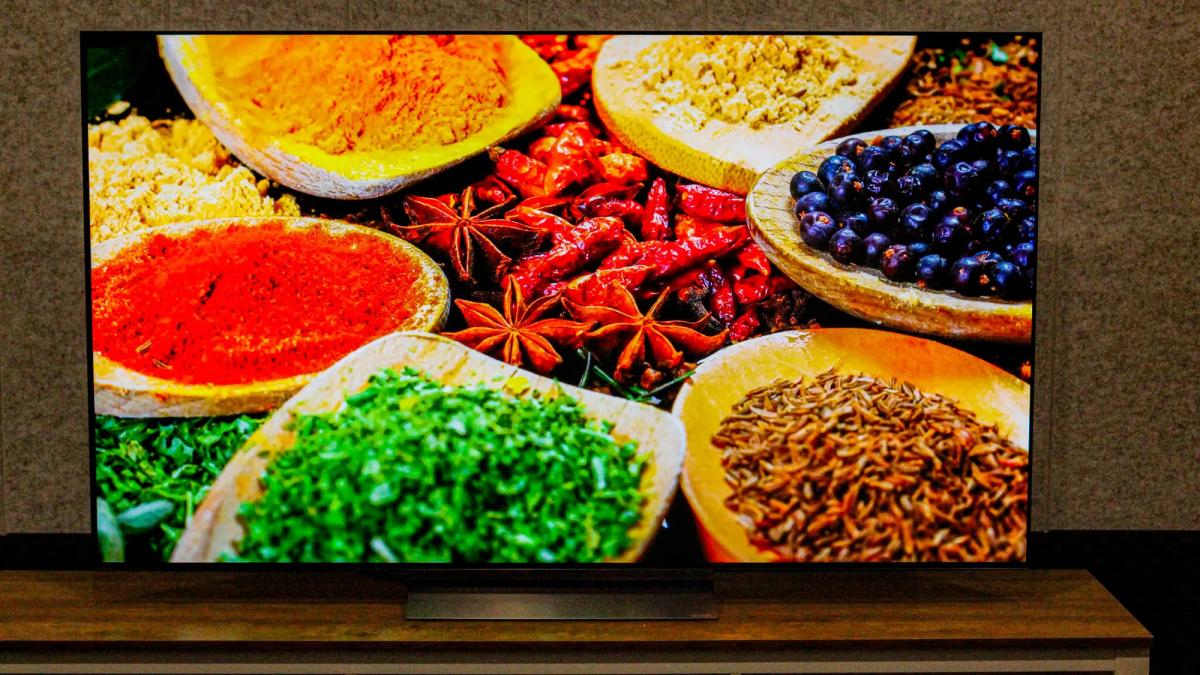
Smart TV owners can significantly improve display performance without paying for expensive professional calibration by making key adjustments to color settings, tech outlet ZDNET reported.
The adjustments apply to both modern OLED and Micro RGB televisions, as well as older QLED and Mini LED models. Most modern televisions deliver strong color reproduction straight out of the box because their screens reproduce tens of millions of shades across advanced color gamuts such as DCI-P3 and BT.2020. However, manual tweaking of basic settings can unlock a display's full capabilities without high costs.
Organic light-emitting diode (OLED) displays rely on self-lit pixels that turn off individually, while quantum dot LED (QLED) and Mini LED systems use targeted backlighting to boost color brightness and contrast. Micro RGB panels utilize microscopic red, green, and blue diodes for pinpoint color delivery. DCI-P3 represents the wide color gamut standard used in commercial cinema, whereas BT.2020 defines an expanded color range created for high-definition 4K and 8K video content.
Adjusting the color temperature of a television determines whether the image shifts toward warm or cool tones. Cooler settings lean heavily into blue and green hues, while warmer settings emphasize yellow and red tones.
The simplest way to find an appropriate color temperature is by cycling through preset picture modes. Modes labeled Filmmaker, Cinema or Movie, and Eye Saver generally make the overall picture warmer. This creates a more natural and realistic appearance while reducing eye fatigue during prolonged viewing. Conversely, Night and Sports modes utilize cooler shades, while Standard, Vivid, and Eco options aim for neutral color output.
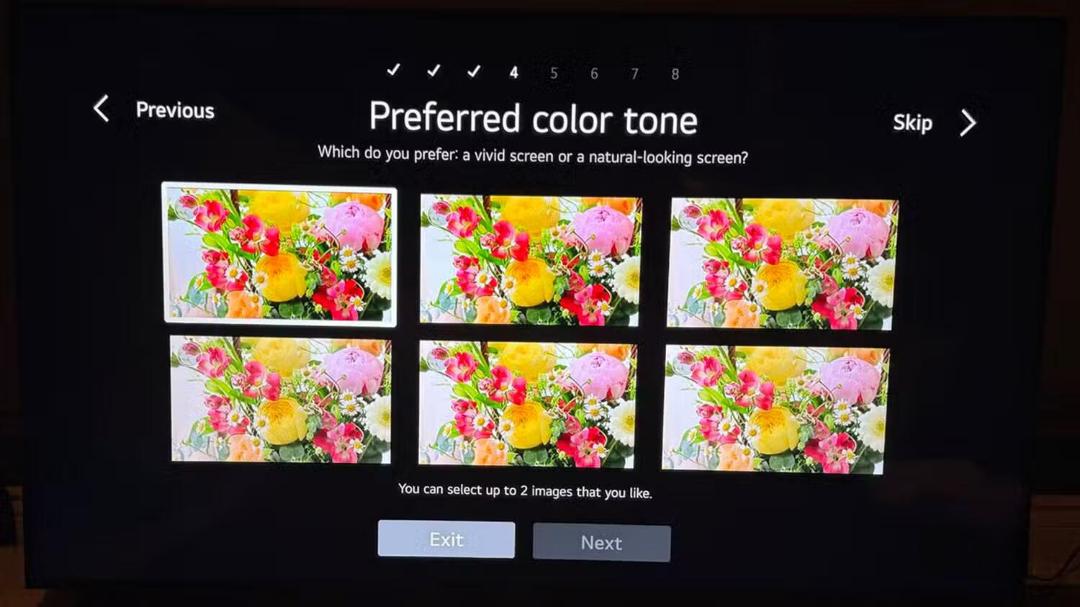
Color Temperature Settings by Brand
Television manufacturers organize display menus differently across their operating systems. On Amazon Fire TV devices, users navigate to Settings, open Picture or Display and Sounds, select Color Temperature, and choose between Normal, Cool, Warm 1, or Warm 2. On Hisense televisions, the path is Settings, Picture, Picture Mode Settings, and Color Temperature, offering options for Cool, Standard, Warm 1, or Warm 2. LG users can open Settings, go to Picture, select Advanced Settings, choose Color, and adjust Color Temperature to personal preference. On Roku TV systems, users select Settings, Picture, Advanced Settings, and Color Temperature, where Warm, Normal, or Cool can be selected.
On Samsung televisions, the setting is located under Settings, Picture, Expert Settings, and then Color Tone or Color Temperature, with options for Standard, Cool, Warm 1, or Warm 2. Samsung sets also feature a Custom mode that allows manual adjustment of individual red, green, and blue color levels. On Sony models, users navigate through Settings, Display and Sound, Picture, Color, and Color Temperature to select Expert 1, Expert 2, Warm, Neutral, or Cool. TCL owners can open Settings, Picture, Advanced Settings, Color, and Color Temperature, selecting between Standard, Cold, or Warm.
ZDNET is an international technology news site that tests consumer electronics, computer hardware, and home entertainment systems. Founded in 1991, the publication regularly publishes guides and laboratory evaluations for home theater hardware.
Adjusting Color Saturation
Color saturation controls the intensity and vibrancy of colors on screen. Setting saturation too high causes reds and yellows to appear harsh and unnatural, while setting it too low leaves film scenes looking washed out and dull. Once a user selects a picture mode and fine-tunes color temperature, adjusting saturation provides further refinement.
Navigation steps for saturation vary depending on the television brand. Amazon Fire TV owners can adjust saturation by opening Settings, selecting Display and Sounds, choosing Display, selecting their active picture mode, and adjusting Color Saturation. On Hisense models, users go to Settings, Picture, Picture Mode Settings, and Color Saturation. LG sets require users to open Settings, select All Settings, go to Picture, choose Advanced Settings, select Color, and adjust Color Depth. Under the Color Gamut section on LG sets, selecting Auto Detect is recommended. On Roku TV platforms, users enter Settings, open Picture Options, select their picture mode, go to Adjust Picture, and modify Color and Tint.
On Samsung televisions, users navigate through Settings, All Settings, Picture, Advanced Settings, and Color and Tint, with ZDNET recommending that the Color Space option be set to Auto. Sony users can open Settings, go to Display and Sound, choose their active picture mode, and adjust Color. On TCL models, the setting is reached through Settings, Display and Sound, Picture, Advanced Settings, Color, and Color Saturation, though ZDNET recommends disabling this feature on TCL sets. ZDNET noted that no single saturation level works for every television, as the final image depends on the specific hardware model, ambient room lighting, and individual viewing preferences.
Professional Calibration Costs
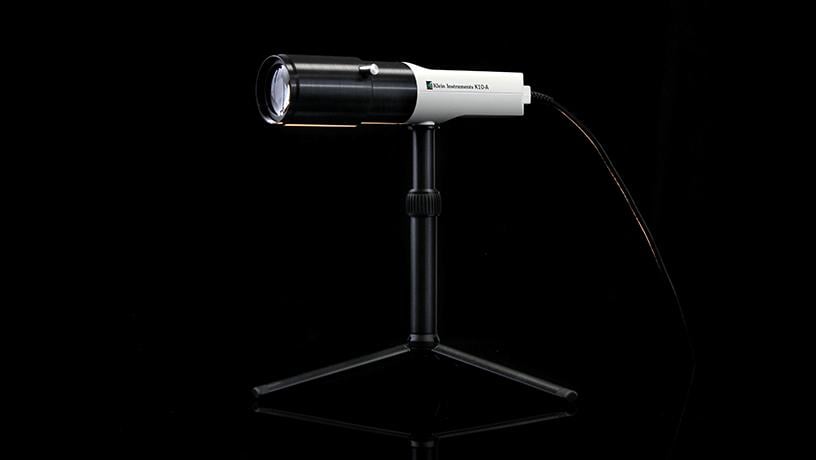
For viewers seeking exact color accuracy, smart televisions can be calibrated using specialized laboratory equipment. In its testing facilities, ZDNET evaluates screens using a Klein K10-A colorimeter paired with Calman calibration software. These professional tools measure and fine-tune peak brightness, contrast ratios, RGB color balance, and other display parameters far more precisely than can be judged by eye.
Professional calibration hardware requires substantial financial investment. A Klein K10-A colorimeter costs approximately $7,000, while Calman calibration software costs between $1,500 and $3,000 depending on the software package and feature set selected.
Colorimeters are optical sensor instruments that measure color coordinates and light intensity emitted from screen pixels. Calman, developed by Portrait Displays, is a standard calibration software used by display engineers, post-production studios, and television manufacturers worldwide.
More affordable consumer-grade colorimeters are available for home users, including the Calibrite Display 123 and the Asus ProArt CaliContrO. These entry-level sensors provide detailed display performance data and allow users to run automated calibration routines, though they require connecting the television directly to a computer or laptop. ZDNET emphasized that most home viewers do not need to invest in calibration hardware. Simply selecting Cinema or Filmmaker mode and adjusting color temperature and saturation levels provides a noticeable improvement in color realism without additional cost.


